
The Profits Treasure Hunt
July 24, 2025 11 min read Sebastian Eduard

There is money sitting in your Amazon account right now that you are not collecting. Not hypothetical money. Not "potential revenue if everything goes perfectly." Actual, proven, previously profitable keywords buried inside campaigns you paused months ago and never looked at again.
Every Amazon seller has paused campaigns. Some were paused for legitimate reasons. Many were not. And inside those wrongly paused campaigns sit keywords that were generating profitable sales before someone pulled the plug. Keywords with real order history, strong conversion rates, and ACoS numbers most active campaigns would envy.
This exact tactic was voted the #2 Amazon Hack in the 10x5 July series, and for good reason. It generated an extra $2M in Ad Sales for our clients, with significantly less effort than the normal pathway of maturing a PPC setup from scratch. What follows is the full 15 step framework we use at Insiders every single time we onboard a new brand. There has never been an account where we have not found profitable keywords trapped in paused campaigns. Not once.
Why Profitable Keywords Get Buried
Before we get into the framework, you need to understand why this problem exists in the first place. Campaigns get paused for the wrong reasons all the time. Once you see the pattern, you will never look at your paused campaigns the same way.
Here are the most common reasons profitable keywords end up locked away:
- Assessing performance over too narrow a window. A campaign might look terrible over 7 days but profitable over 90. Short lookback windows kill good performers.
- Impatience with sales attribution. This happens especially with Sponsored Display. Sales data takes time to populate, and many sellers pause before the full picture arrives.
- Pausing entire campaigns without checking keyword level data. A campaign with a 40% ACoS might have 3 keywords at 12% ACoS doing all the heavy lifting. When you pause the campaign, those winners go dark too.
- Pausing instead of lowering bids during slow seasons. Low conversion rate season does not mean a keyword stopped working. It means you needed a lower bid, not a full stop.
- Chaotic bid and placement optimization. Random bid changes without a strategy can make a campaign look like it is failing when it just needed a consistent approach.
Now that you know the "why," let us go step by step through the process of finding and reviving these lost opportunities.
Phase 1: Discovery
The first phase is about surfacing your paused campaigns and prioritizing them by potential value. You want to start where the money is most likely hiding.
Step 1: Filter and Sort Your Paused Campaigns
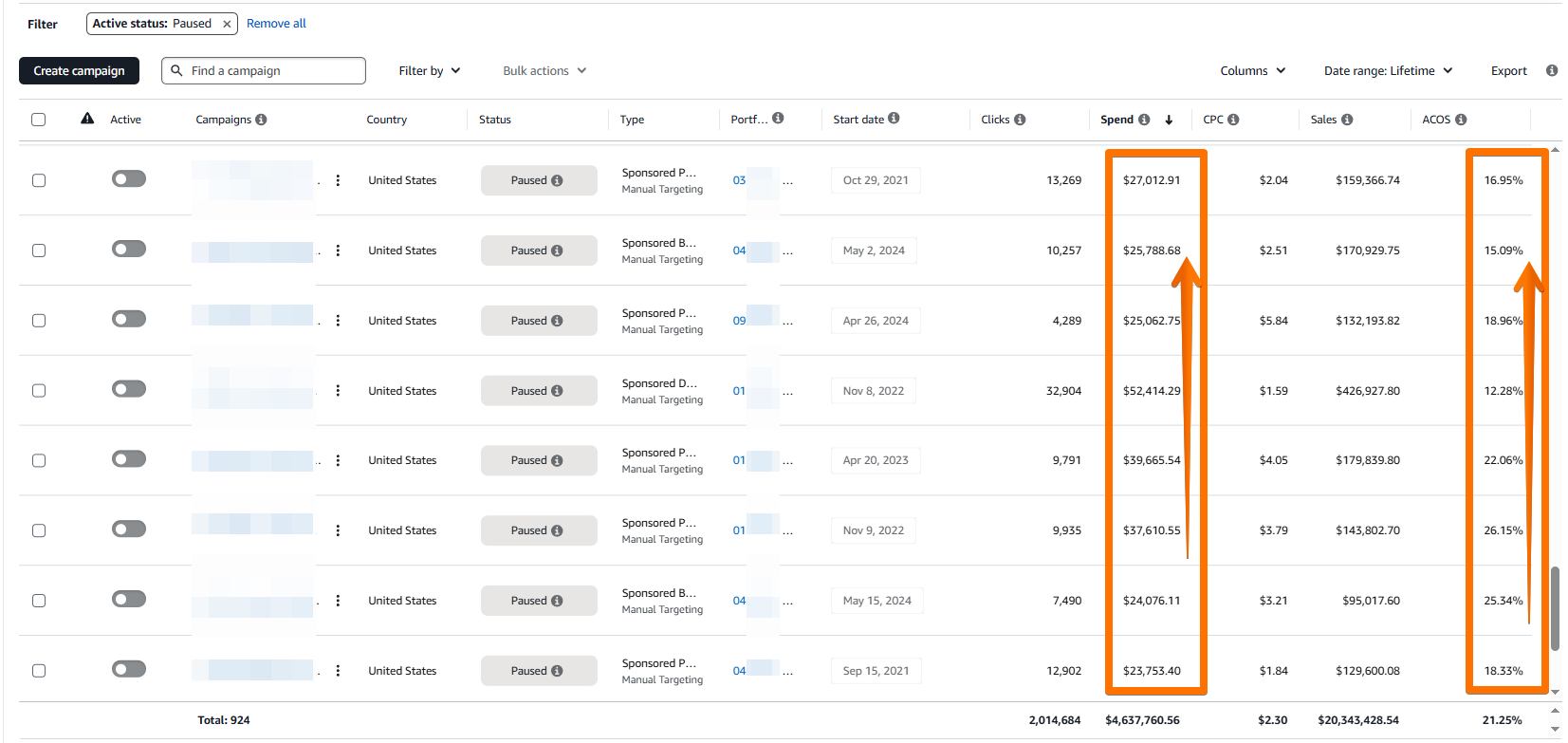
Go to Campaign Manager. Set the Date Range to Lifetime. Filter Campaign Status to Paused. Sort by Spend from high to low.
This immediately shows you where the most advertising dollars were invested before those campaigns were shut down. A campaign that spent $27,000 and generated $159,000 in sales at 17% ACoS before being paused? That is not waste. That is an asset someone abandoned.
Step 2: Prioritize by Spend and ACoS
Start with the campaigns that show high Spend and low ACoS. These are your highest probability wins. A paused campaign with $25,000 in spend at 15% ACoS has a very different story than one with $500 in spend at 80% ACoS. Eventually go through all paused campaigns, but the order matters because you want quick wins first.
Phase 2: Analysis
Discovery tells you where to look. Analysis tells you what you are actually dealing with. This is where most people skip steps and end up re-pausing campaigns they just revived. Do not rush this.
Step 3: Understand the Campaign Foundation
Before diving into keywords, quickly check the Campaign Settings. You need to understand the foundation: which portfolio does it belong to? What campaign type is it (Sponsored Products, Brands, Display)? What was the budget when it was paused? What targeting strategy was used? What cost type was set?
This context matters because it tells you the original intent behind the campaign. A research campaign (broad/phrase match) needs different revival treatment than an exact match performance campaign. A Sponsored Display campaign has different attribution than Sponsored Products. If you skip this step, you will make bad decisions in the later phases.
Step 4: Apply the Keyword Filters
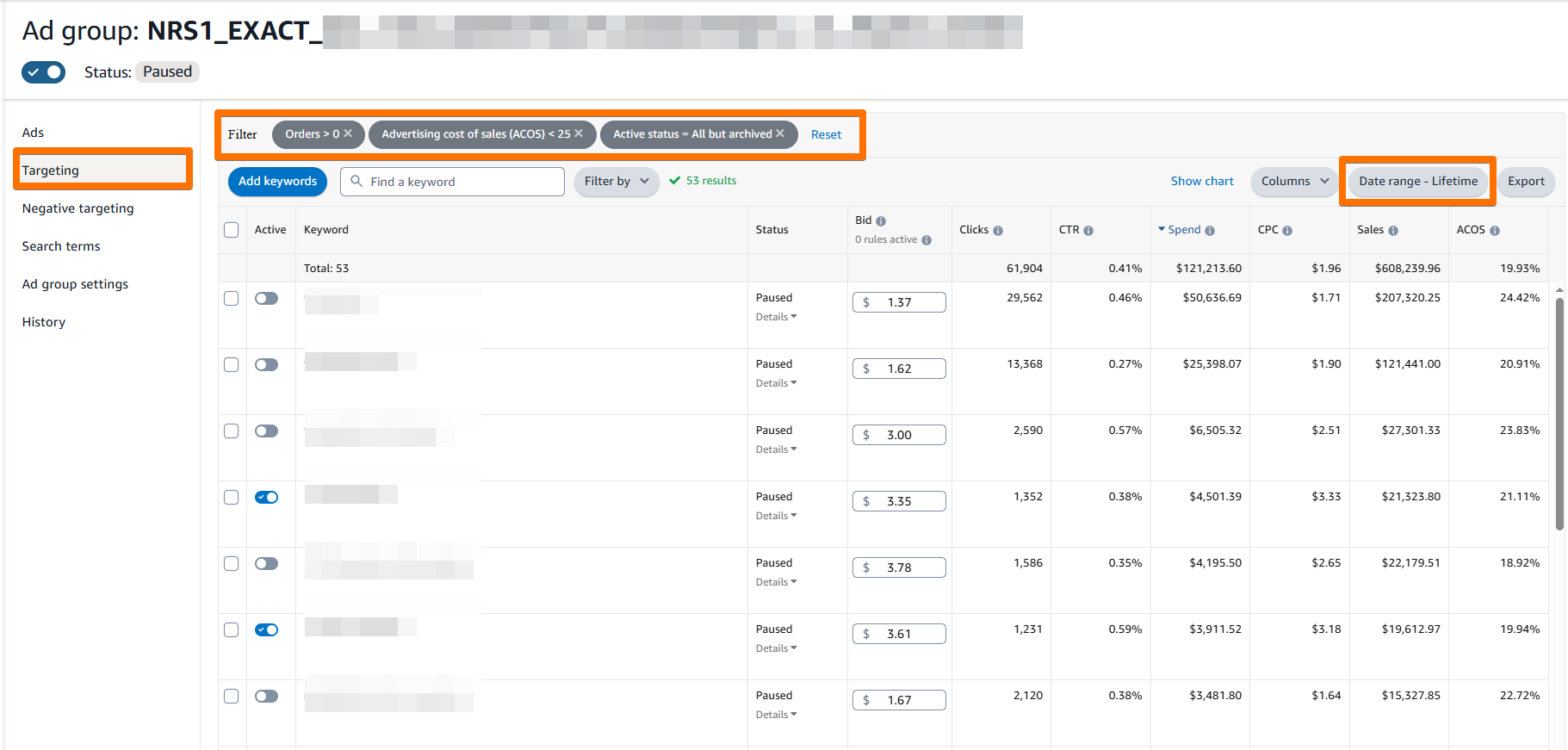
Open one ad group at a time and apply three filters: Orders greater than 0, ACoS less than your target ACoS, and Status set to All but Archived.
This is the moment of truth. These filters strip away all the noise and show you only the keywords that actually generated profitable sales. When you see 53 results pop up with keywords that have 20% ACoS, $600K+ in sales, and thousands of orders, it becomes very clear that this campaign should not have been paused.
Step 5: Isolate Individual Keyword Performance
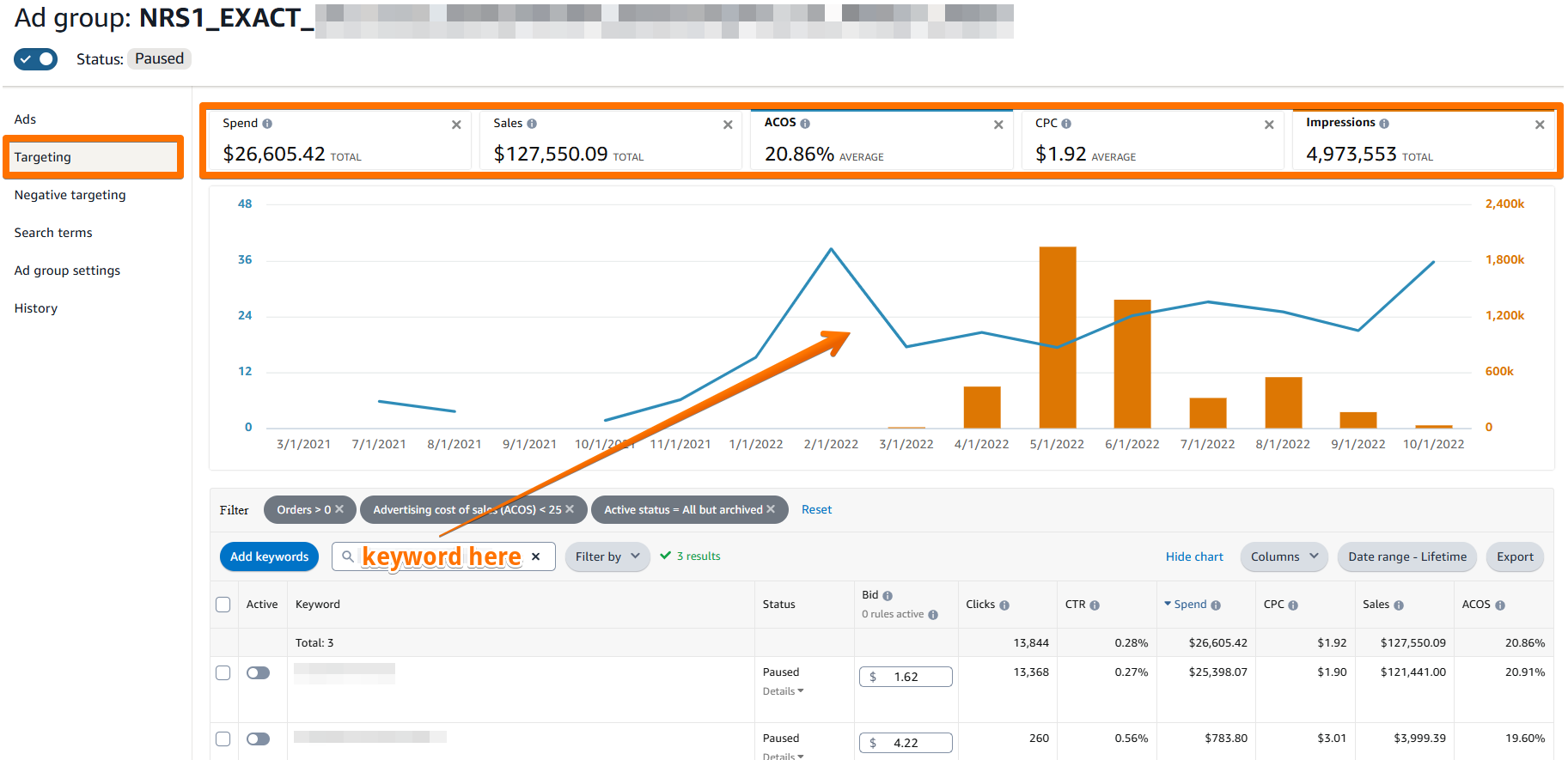
Copy the first keyword and paste it into the search bar. This forces the ad group's graph to display data for that specific keyword only. Why does this matter? Because aggregate data hides individual stories. A keyword with $25,000 in spend and 21% ACoS might have had 6 months of incredible performance followed by 2 bad months. The aggregate looks fine, but you need to see the timeline to make a smart reactivation decision.
Step 6: Read the Performance Graph
Set the graph metrics to: Spend, Sales, CPC, ACoS, and Impressions. This five metric view gives you the complete picture. You can see exactly when the keyword peaked, when it started declining, and most importantly whether the decline was gradual (suggesting market changes) or sudden (suggesting someone manually intervened).
Alternate between metrics to build the full narrative. Impressions dropping while CPC stayed flat? The listing might have lost rank. ACoS spiking while sales stayed strong? Bids were probably too aggressive. Sales flatlined while everything else held steady? Could be a seasonal dip or a conversion rate issue on the listing itself. The graph does not just show you numbers. It tells you what happened and why.
Phase 3: Decision Making
You have the data. Now you need to decide: was this keyword rightfully paused, or did it get caught in crossfire? This phase is about confirming your hypothesis before you act.
Step 7: Zoom Into the Final Active Period
If possible, switch the Date Range to the keyword's last enabled week or month. The lifetime view tells you the big picture, but the final active period tells you the full story of what was happening right before the pause. Was the keyword still performing when it was shut down? Or was there a genuine decline that justified the pause? The answer to this question determines everything.
Step 8: Use the History Tab for Forensics
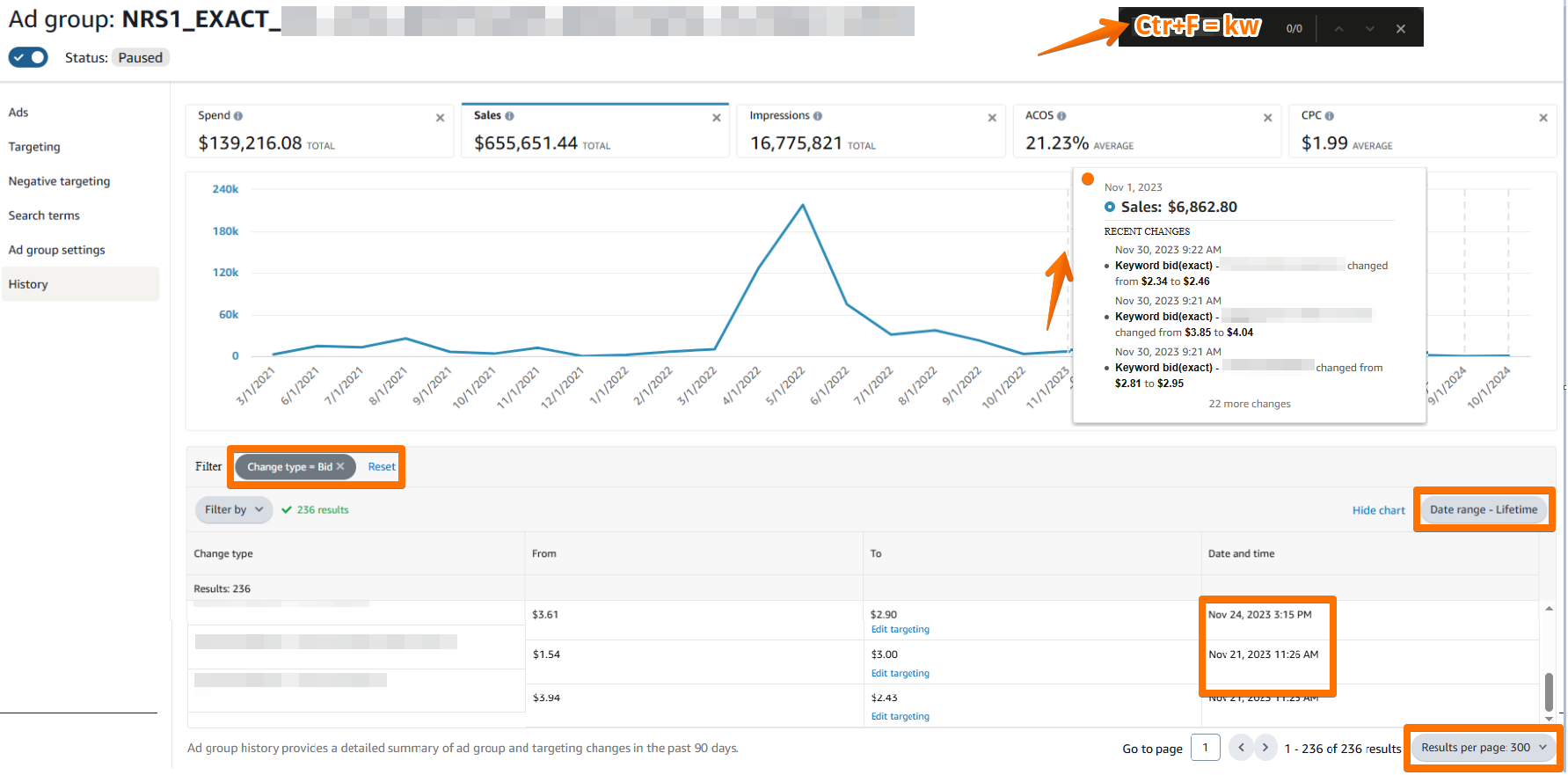
If the graph alone does not give you a clear answer, go to the History tab. Use Ctrl+F (or Cmd+F) and paste your keyword name. This reveals the complete bid sequence and status changes over time.
This is where you often find the real cause of death. You might discover that someone changed the bid from $2.34 to $2.46, then to $4.04, then to $2.95, all within a few days. That kind of chaotic bid management is what kills performance. The keyword did not fail. The management did. And that is exactly the type of keyword that deserves a second chance with a proper bid strategy.
Step 9: Make the Call
By now, the decision is usually clear. After reviewing the filters, the graph, the date ranges, and the history, you will know if a keyword was correctly paused or not. In most cases, the answer is that it should not have been paused. The data supports reactivation, and the reason for the original pause was one of the common mistakes we listed at the beginning: too narrow a window, campaign level judgment, or panicked reactions to seasonal dips.
Phase 4: Revival
This is where you start bringing keywords back to life. But revival does not mean just flipping a switch. You need to be methodical about it, because the marketplace has changed since these keywords were last active.
Step 10: Enable or Keep Paused
If the keyword was rightfully paused, leave it. Not every keyword deserves revival, and forcing a bad keyword back will only waste budget. But if the data shows it was wrongly paused, enable it and set the bid equal to the last known CPC before it was paused. Not the last bid. The last CPC. That is the price the market was actually charging, and it gives you a realistic starting point.
Step 11: Repeat for All Keywords in the Campaign
Go through every keyword that passed your profitability filters. Some campaigns will have 3 winners. Others will have 50+. Do not cherry pick. Every profitable keyword you leave paused is money you are leaving on the table. The whole point of this framework is to be thorough, because partial execution gives you partial results.
Step 12: Enable the Ad Group and Campaign
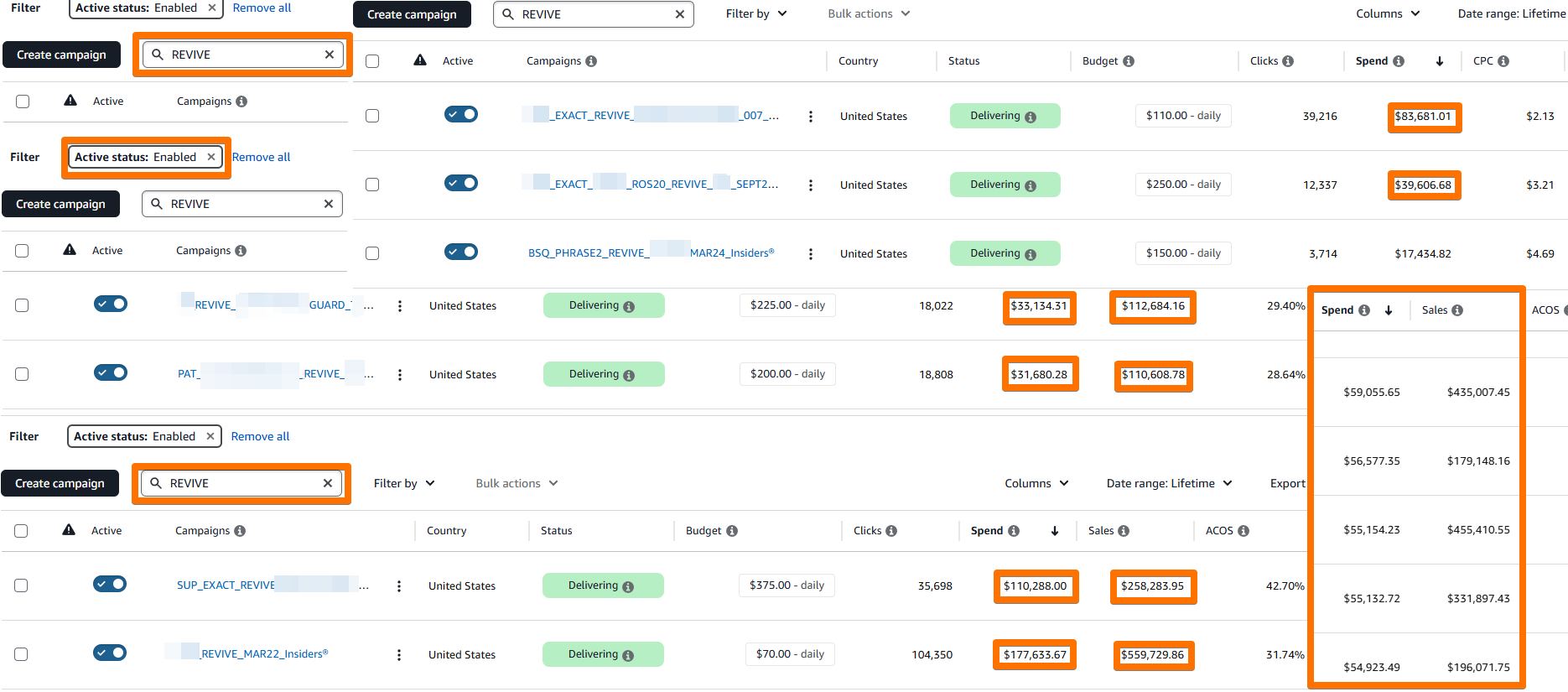
Once all keywords are reviewed, enable the ad group and the campaign itself. Add an acronym like "REVIVE" to the campaign name so you can easily identify and track these campaigns separately. This naming convention becomes incredibly valuable when you are reviewing performance later and want to measure exactly how much revenue your treasure hunt generated.
Step 13: Set a Conservative Budget
Set a conservative budget for the first 7 days. There are still many variables in play: search frequency rank, conversion rate, CPC levels, and competition may have all shifted since the campaign was last active. Treat this as an asset you are testing, not one you trust yet. After the first week, the data will tell you whether to scale up, adjust bids, or course correct.
Phase 5: Safeguarding
Reviving keywords without protecting them is how you end up pausing them again in 60 days. These last two steps ensure your revived campaigns stay healthy.
Step 14: Upload Negative Keywords for Research Campaigns
If the revived campaign is a research campaign (phrase match, broad match, or auto), you need to upload negative keywords according to your convention, whether that is at the campaign or ad group level. Research campaigns without proper negative keywords will bleed budget on irrelevant search terms. This is one of the most common reasons research campaigns get paused in the first place. Do not repeat the mistake.
Step 15: Monitor and Iterate
Repeat this entire process for all remaining paused campaigns. Do not stop after the first few wins. The treasure hunt is only complete when you have gone through every single paused campaign in your account. Some of the best finds show up in campaigns you almost skipped because the aggregate numbers looked mediocre. The keyword level data tells a different story.
Bonus: The Ads Tab Cleanup
Once your revived campaigns are running, check the Ads tab and adjust the advertised products to match your current product priorities. Keep only the products that are still actively running, have sufficient inventory, and align with your current strategy.
Our recommendation? Hold onto the best performing product exclusively. Pause the rest. Then move that campaign into its proper portfolio so you have granular control over each ASIN's results. This prevents budget dilution and ensures the revived campaign feeds your highest priority products.
This framework works every time because the math is simple. You are not guessing at what might work. You are reactivating keywords with proven track records that were shut down prematurely. The only question is how much money you will find. Across every account we have audited, the answer has always been: more than you expected.
Watch the Full Presentation

Sebastian Eduard
With over a decade of experience as an Amazon Seller and a consultant at heart, my mission through Insiders is to deliver outstanding Amazon PPC Management, built on the respect and transparency I once sought during my own seller journey. The 50+ brands that entrusted us with +$65M Ad Spend, received $280M in Ad Sales and +$585M Total Revenue.